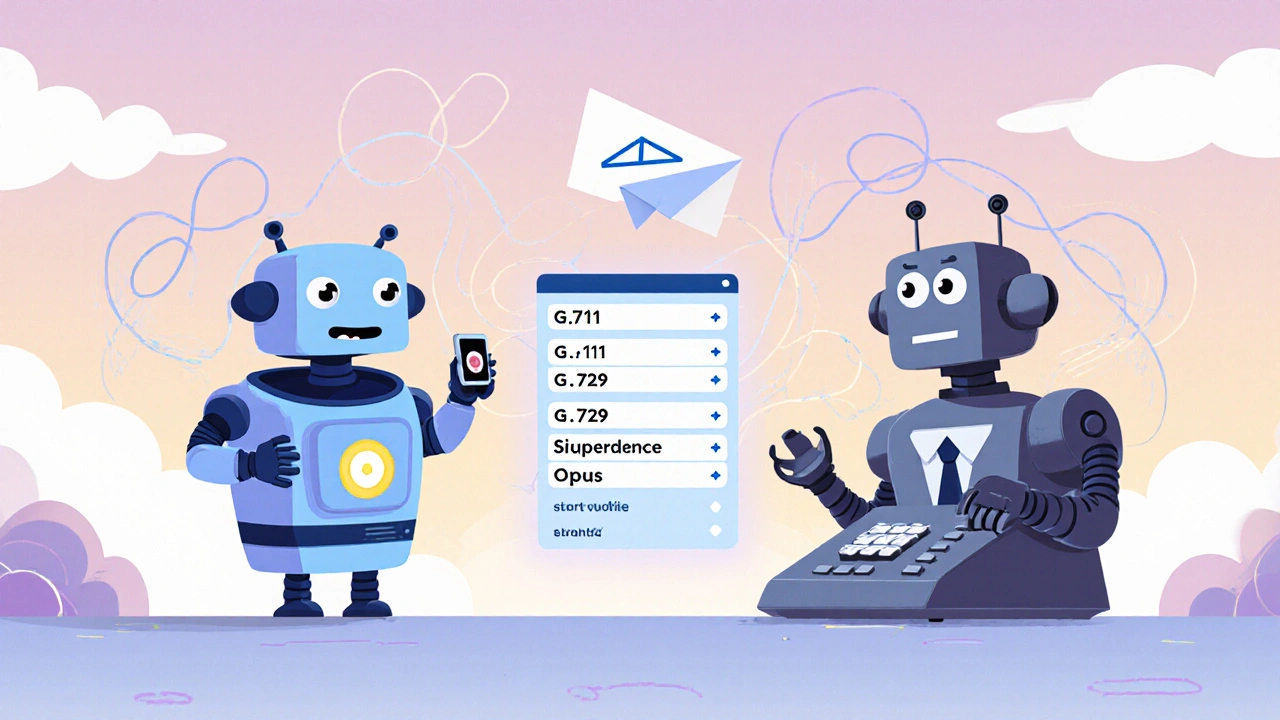
Codec Compatibility: Fix VoIP Audio Issues with the Right Codecs
When your VoIP calls sound like they’re coming through a tin can, the problem isn’t your internet—it’s codec compatibility, the ability of devices and services to agree on how to encode and decode voice data. Also known as audio codec negotiation, it’s the silent handshake that makes your voice travel clearly over the internet. If your phone uses G.711 but your provider defaults to OPUS, or your softphone tries to send AAC while your desk phone only understands G.729, the result is static, delays, or complete audio dropouts. This isn’t rare—it’s the #1 hidden cause of bad call quality in small businesses and remote teams.
Codec compatibility isn’t just about picking a fancy format. It’s about matching what your hardware, software, and provider actually support. For example, G.711, a high-quality, uncompressed codec used in traditional phone systems gives crystal-clear sound but eats bandwidth. G.729, a compressed codec that saves bandwidth at the cost of some audio detail works great on slow connections but can sound robotic if both ends don’t handle it the same way. Then there’s OPUS, a modern, adaptive codec that adjusts quality based on network conditions, which is becoming the gold standard for SIP phones and cloud systems—but only if everything in the chain supports it. Many users install new Yealink or Polycom phones, assume they’ll work fine, and then wonder why calls sound broken. The issue? Their provider’s system doesn’t advertise OPUS as a supported codec, so the phone falls back to an older, incompatible one.
Fixing this isn’t about buying new gear. It’s about checking settings. Most VoIP phones let you manually set preferred codecs in order of priority. Your PBX or cloud provider usually lists supported codecs in their documentation. Match them up. Turn off codecs you don’t need—every extra one increases negotiation time and risk of failure. If you’re using a softphone on a laptop, make sure your audio drivers aren’t forcing a sample rate that conflicts with the codec. And if you’ve ever seen codec compatibility mentioned in a troubleshooting guide but didn’t know what to do next, you’re not alone. The posts below show you exactly how to check your current setup, identify mismatches, and fix them without calling tech support. You’ll see real examples from users who fixed robotic audio in under 10 minutes, how to test codec negotiation with free tools, and which providers make this process easy—or a nightmare.