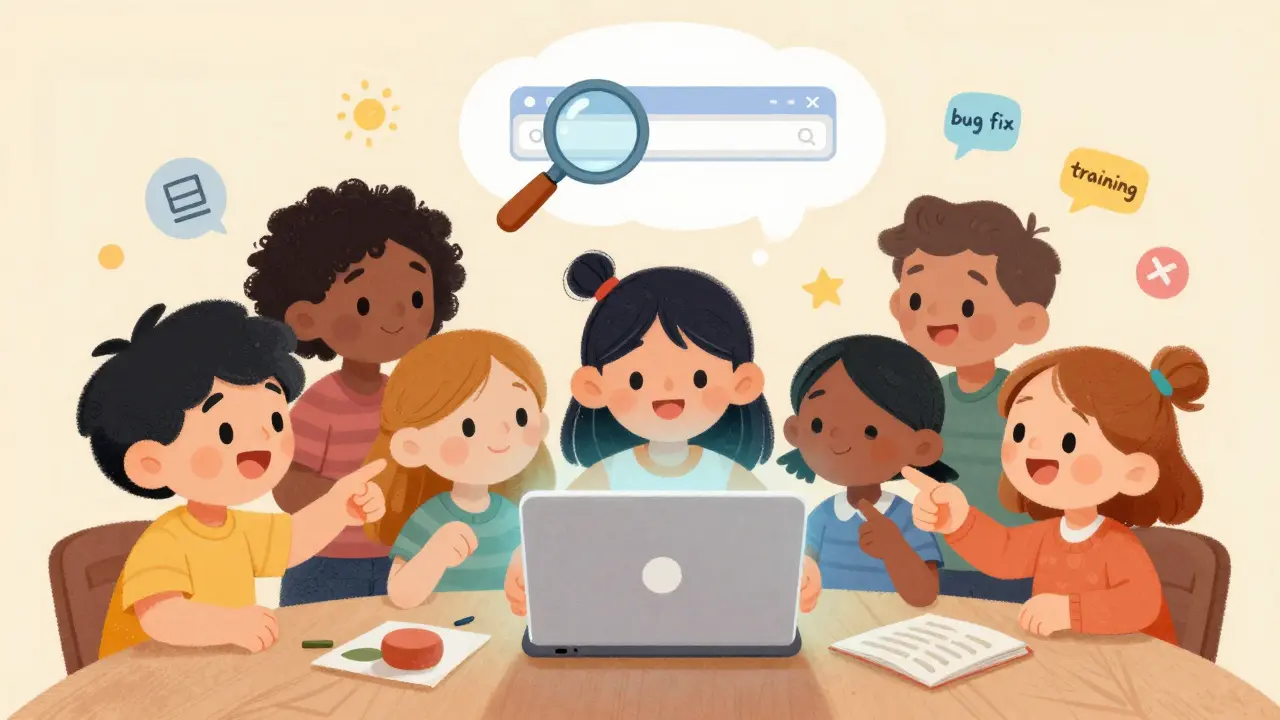
When you’re on a call with a teammate and need to show them how to fix a bug, walk through a report, or demo a new feature, words alone just don’t cut it. That’s where screen sharing comes in. It’s not a fancy add-on anymore-it’s the default way teams get things done. Whether you’re troubleshooting a server issue, training a new hire, or presenting to a client, screen sharing turns a voice call into a live, visual collaboration session. And in 2026, if your collaboration tool doesn’t do this well, you’re already working harder than you need to.
What Screen Sharing Actually Does
Screen sharing lets you broadcast what’s on your device-your whole screen, a single app window, or even just one browser tab-to everyone on the call. It’s not just about showing content; it’s about removing guesswork. Instead of saying, "Click the third button under Settings," you click it yourself and everyone sees it happen in real time. Studies show this cuts meeting time by 22% to 35% when explaining complex tasks. That’s hours saved every week across teams.
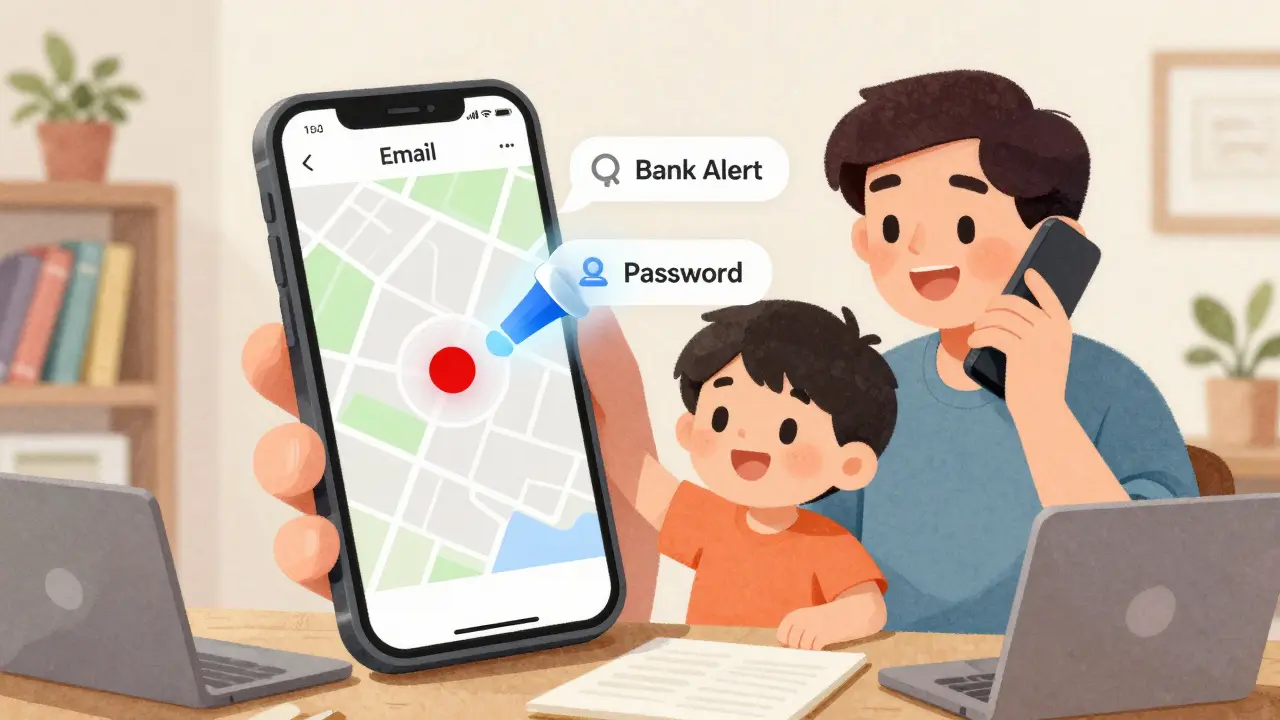
Modern platforms handle this with low latency-usually under half a second. That means when you move your mouse or scroll, participants see it almost instantly. The technology works by capturing screen pixels and streaming them over the internet using secure protocols. Most tools now use end-to-end encryption, so what you share stays private. But here’s the catch: encryption doesn’t stop you from accidentally sharing your personal notes, unread emails, or a notification from your bank app.
What You Can Share (And What You Shouldn’t)
Not all screen sharing is the same. Here’s what most platforms support today:
- Entire screen: Shows everything. Easy to start, risky if you have notifications, passwords, or private tabs open.
- Specific application: Only shares one program, like Excel or Slack. Keeps the rest of your desktop hidden. Best for focused work.
- Browser tab: Shares just one website. Great for demos or showing live dashboards without exposing your whole browser.
- Mobile screen: Share your phone or tablet screen during a call. Apple pioneered this with iOS 15, letting you share during regular phone calls-no video app needed.
Experts warn that 78% of data leaks during screen sharing happen because users forget what’s visible. A taskbar, notification center, or open chat window can accidentally reveal passwords, client names, or internal project codes. That’s why smart teams use app- or tab-specific sharing instead of full-screen. Tools like Zoho and Webex even let you highlight or annotate parts of the screen to guide attention-cutting down confusion and keeping things on track.
How Different Platforms Compare
Not all screen sharing tools are created equal. Here’s how the big players stack up as of early 2026:
| Platform | Multi-Presenter Sharing | Mobile Sharing | Annotation Tools | Auto-Blur Sensitive Info | Key Strength |
|---|---|---|---|---|---|
| Webex | Yes | Yes | Yes | No (planned for 2026) | Best for team troubleshooting with seamless presenter handoffs |
| Zoho Meeting | Yes | Yes | Yes | No | Most intuitive interface; 92% user satisfaction |
| Microsoft Teams | No | Yes | Basic | No | Deep integration with Office 365; most widely used in enterprises |
| Apple (iOS) | No | Yes | No | No | Unique phone-call screen sharing-no app required |
| Google Meet | Yes | Yes | Basic | No | Simple, reliable, good for small teams |
Microsoft Teams still doesn’t let multiple people share their screens at once. If you’re troubleshooting a network issue and two IT staff need to show different logs, you have to pass control back and forth. That breaks flow. Users on Reddit’s r/sysadmin community say it adds 3-5 minutes per session. Meanwhile, Webex and Zoho let you toggle between presenters without interrupting the call. Apple’s mobile screen sharing is quietly revolutionary: you can fix a client’s phone issue over a regular voice call without switching to Zoom or Teams. That’s convenience built into the OS.
Why It Matters More Than Ever
Screen sharing isn’t just about convenience-it’s changing how teams work. Dr. Sarah Chen from MIT Sloan found that screen sharing reduces cognitive load during remote work by 37% compared to audio-only calls when explaining complex tasks. That means less mental effort spent trying to visualize what someone is describing. You’re not just saving time; you’re reducing fatigue.
Usage has exploded. In 2020, teams were sharing screens for about 1.2 billion minutes per day. By late 2023, that jumped to 8.7 billion minutes per day. Enterprises now consider screen sharing a "must-have" feature-97% of companies say they’d struggle without it. Small businesses use it mostly for client demos (48%) and tech support (32%), while large organizations rely on it daily for operations, training, and cross-team collaboration.
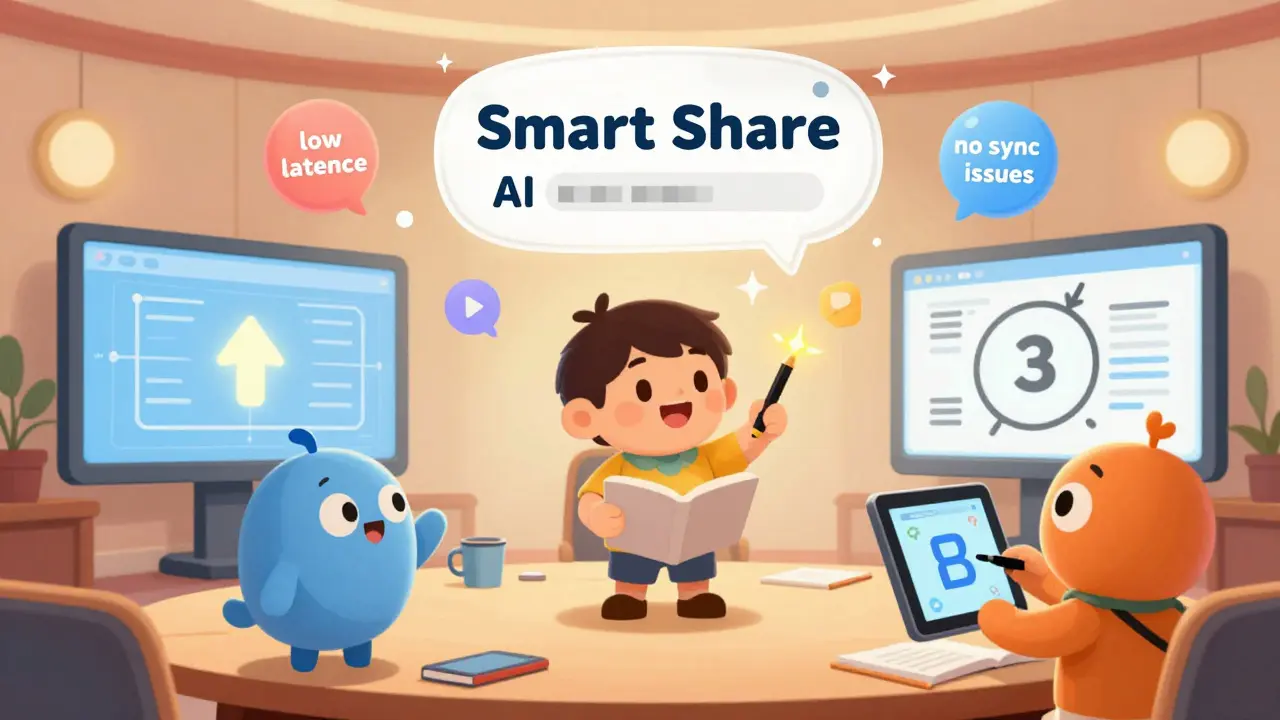
And it’s evolving. By 2026, Gartner predicts 95% of enterprise tools will include AI that automatically blurs sensitive data-like credit card numbers or passwords-during screen sharing. Zoho’s "Smart Share" feature, launching in early 2026, will highlight key data points in real time, like drawing attention to a spike in sales numbers without you having to circle it manually. This isn’t science fiction-it’s the next step in making collaboration effortless.
Common Problems and How to Fix Them
Even with all the advances, screen sharing still trips people up. Here are the top issues-and how to avoid them:
- Accidentally sharing private info: Before you start sharing, close all unrelated apps and turn off notifications. Use app-specific sharing instead of full screen. Always check your taskbar and notification center.
- Audio and video out of sync: This happens mostly on older networks. Make sure you have at least 1.5 Mbps upload speed. For HD screen sharing, aim for 3.5 Mbps. Webex and Google Meet auto-adjust quality based on your connection.
- Can’t share with multiple people: If you’re on Teams and need two people to show different screens, switch to Webex or Zoho for that session. Or record your screen separately and share the video.
- Firewall blocks sharing: Some corporate networks block screen sharing. Talk to your IT team. Most block only the wrong ports-getting them open takes minutes.
- Annotation tools are confusing: Practice for 20-30 minutes. Most tools let you draw, highlight, or type on the shared screen. Use them to guide eyes, not just decorate.
One simple habit saves time: pass presenter control. Don’t just hand over the mic-hand over the screen. Let the next person take over sharing. It keeps the flow natural and makes collaboration feel equal. Webex says this increases team efficiency by 40% during troubleshooting.
What’s Next for Screen Sharing
The future is smarter, not just faster. AI will soon do the heavy lifting:
- Auto-blur of personal data (passwords, emails, IDs) during sharing
- Real-time translation of text shown on screen
- Smart highlighting of key metrics (e.g., "This chart shows a 23% drop in user retention")
- Automatic recording and summarization of shared content
Regulatory pressure is also growing. GDPR and similar laws in Europe now treat screen sharing as a data transfer event. If you share a screen with a European client’s personal info, you’re legally responsible for protecting it. Many companies have added screen sharing policies in 2024 to stay compliant.
Meanwhile, mobile screen sharing is becoming the norm. You won’t need a video call to share your phone screen anymore. Apple’s integration into regular phone calls is just the start. Expect Android and other platforms to follow suit.
Is screen sharing safe during business calls?
Screen sharing is safe when used correctly. Most platforms use end-to-end encryption, so your data is protected during transmission. But the biggest risk isn’t hacking-it’s you. Accidentally sharing your desktop with open emails, passwords, or notifications causes 78% of data leaks. Always use app- or tab-specific sharing, close unrelated programs, and turn off notifications before you start.
Can I share my phone screen without using Zoom or Teams?
Yes, if you’re on an iPhone. Apple introduced screen sharing directly into standard phone calls with iOS 15. You can share apps, websites, or documents over a regular voice call without launching any video app. It’s perfect for quick fixes with clients or colleagues who don’t want to join a meeting. Android users don’t have this yet, but it’s expected to arrive in 2026.
Why doesn’t Microsoft Teams let multiple people share at once?
Microsoft Teams currently only allows one person to share their screen at a time. This forces users to pass control back and forth during troubleshooting, which breaks workflow. IT professionals have been asking for multi-share since late 2023, and Microsoft has acknowledged the request. But as of early 2026, no timeline has been given. Teams users who need this feature often switch to Webex or Zoho for complex collaboration sessions.
How much bandwidth does screen sharing use?
Standard screen sharing (720p) uses about 1.5 Mbps upload. If you’re sharing high-definition content or using annotation tools, it can jump to 3.5 Mbps. For comparison, a video call without screen sharing uses around 1.2 Mbps. If your internet is slow, platforms like Webex and Google Meet automatically lower quality to keep the stream smooth. Always test your upload speed before important presentations.
Do I need training to use screen sharing effectively?
Basic screen sharing takes less than 15 minutes to learn. But using it well-like passing presenter control, using annotations, or sharing only what’s needed-takes about 45 minutes of practice. Teams that train their staff on these best practices report 30% fewer confused calls and 25% faster issue resolution. It’s not about the tool; it’s about how you use it.
Final Thought
Screen sharing isn’t just a feature. It’s the bridge between thinking and showing. When you can see what someone else sees, collaboration stops being a guesswork game. It becomes real-time teamwork. The tools are getting smarter, faster, and more secure. But the biggest upgrade? You. The next time you’re on a call, don’t just describe it-share it. Your team will thank you.