
Imagine this: you're on a call with a client, and as soon as they pick up, their entire history pops up on your screen - past purchases, open tickets, even the last time they complained about shipping. No typing. No switching tabs. No guessing. That’s not science fiction. That’s what happens when you connect Microsoft Dynamics 365 with VoIP. And if you’re still manually logging calls or hunting for customer info between your phone and CRM, you’re wasting hours every week.
Why VoIP Integration Matters in Dynamics 365
Microsoft Dynamics 365 isn’t just a CRM - it’s the central nervous system for sales and service teams. But if your phone system lives in a different world, you’re creating friction. Every time an agent has to look up a customer after a call, log the conversation, or remember what was discussed, they’re losing time. Studies show teams using integrated VoIP reduce administrative tasks by 35-50%. That’s almost half a day saved per rep each week.
The magic happens through real-time syncing. When a customer calls, Dynamics 365 pulls up their profile before you even answer. Click-to-dial works from any number in the system - whether it’s in a contact record, email, or invoice. And after the call ends, the system automatically logs the duration, time, and even records the conversation - no manual input needed.
Two Main Ways to Connect: Microsoft Teams Phone vs. Third-Party Tools
You’ve got two clear paths to get VoIP working with Dynamics 365: go native with Microsoft Teams Phone, or pick a third-party solution like Nextiva, FreJun, or VoiceSpin.
Microsoft Teams Phone is the built-in option. It’s designed to work hand-in-hand with Dynamics 365 and Microsoft 365. If you’re already using Teams for chat and meetings, this is the easiest path. Setup takes 8-16 hours. Most teams get it running in under a week. The cost? Just $20 per user per month as an add-on to your Microsoft 365 plan.
But here’s the catch: Teams Phone is great for basic calling and logging, but it’s not built for high-volume sales teams. It doesn’t have predictive dialing, advanced call routing, or AI-powered call coaching. If you’ve got 50+ reps making 200+ calls a day, you’ll hit limits fast. In fact, 63% of enterprises with large sales teams end up adding a third-party tool anyway.
Third-party solutions like Nextiva, FreJun, and VoiceSpin fill those gaps. They offer features Teams Phone doesn’t - like AI dialers that guess the best time to call, real-time transcription with 92.7% accuracy, and call coaching that cuts average handle time by 22%.
But they come with trade-offs. Nextiva costs $25/user/month and requires separate billing. FreJun charges $32/user/month but gives you AI-powered call summaries. VoiceSpin, priced at $19.99/month via Zapier, boosts lead conversion by 40% - but you lose direct Microsoft Marketplace support. And don’t forget implementation: third-party tools often need 40-80 hours of setup and sometimes require a consultant.
What You Get: Click-to-Dial, Screen Pops, and Auto-Logging
Let’s break down the core features you actually use every day.
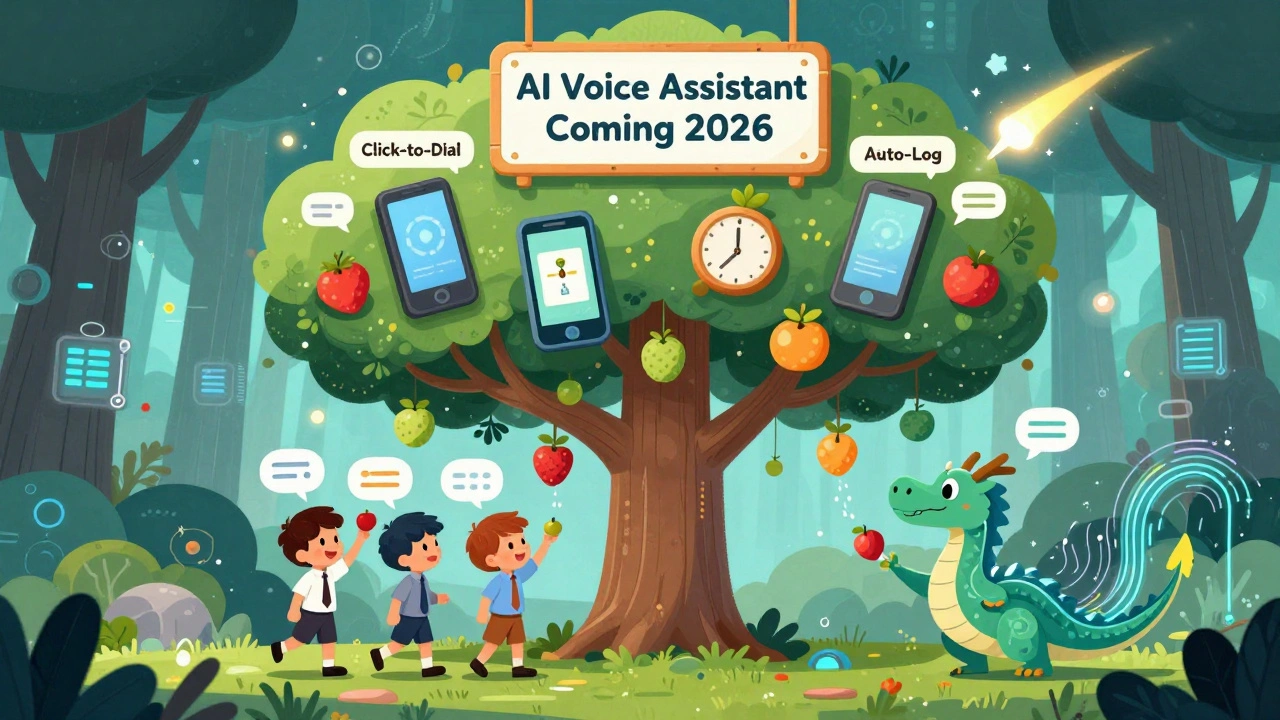
- Click-to-dial: Any phone number in Dynamics 365 - in a contact, account, or opportunity - becomes a clickable link. One click, and the call starts in your softphone. No copying numbers. No dialing manually.
- Screen pops: As soon as a call comes in, your screen instantly shows the caller’s full profile. Name, past interactions, open cases, even notes from their last sales rep. This cuts down lookup time from 45 seconds to under 2 seconds.
- Automatic call logging: After the call ends, Dynamics 365 logs the duration, time, direction (inbound/outbound), and stores the recording. The system processes 99.2% of logs within 45 seconds. No more forgetting to log calls or writing vague notes like “talked about pricing.”
These aren’t nice-to-haves. They’re productivity multipliers. Sales reps using auto-logging report saving 11 hours per week. Customer service teams see a 28% increase in first-call resolution because they’re not playing phone tag with their own CRM.

Security, Compliance, and Scalability
You’re not just connecting a phone - you’re linking it to sensitive customer data. That’s why security isn’t optional.
Microsoft’s native Teams Phone integration uses AES-256 encryption for all call recordings stored in Azure Blob Storage. It meets GDPR, HIPAA, and SOC 2 standards - verified by Deloitte’s 2025 audit. Data stays in your chosen Azure region, so you’re compliant with local privacy laws.
Third-party tools vary. Some, like FreJun and Nextiva, also offer encryption and compliance, but you’re trusting an external vendor. Microsoft’s advantage? Everything runs inside their Zero Trust security model. No extra endpoints. No shadow IT. Less risk.
Scalability? Teams Phone handles up to 50,000 concurrent agents with under 200ms latency in North America. International users see 30-45% higher latency, depending on their Azure region. Third-party tools can struggle with consistency - especially during peak hours. RingCentral users report call recording sync failures in 41% of high-volume cases.
Real User Experiences - What Works and What Doesn’t
People are using these tools. Here’s what they’re saying.
On G2, Teams Phone has a 4.3/5 rating. Users love how it works with Outlook and Teams. But many complain: “No advanced analytics,” “Can’t do predictive dialing,” “Sometimes click-to-dial breaks in the Service module.”
Nextiva scores 4.5/5. One customer wrote: “Screen pops cut my call time by 32 seconds per call.” But 27% of reviews mention setup headaches - especially for multi-site companies.
FreJun users rave about AI transcription. “I don’t take notes anymore. The system does it, and it’s 92% accurate,” says a sales director in a 2025 case study. But the downside? Limited carrier options. If your business uses a niche phone provider, FreJun might not work.
And then there’s Tenfold. It’s powerful for custom screen pops, but it costs $75,000+ to implement. Only big enterprises with deep budgets go there.
On Reddit and the Dynamics 365 Community, the consensus? If you’re small or mid-sized and want simplicity - go Teams Phone. If you’re scaling fast and need AI, dialers, or coaching - invest in a third-party tool.
Implementation: How Long Does It Really Take?
Don’t let the hype fool you. Setup time matters.
Teams Phone: 8-16 hours. Most teams are live in 5-7 days. Training? About 2 hours per user. You don’t need a developer. Just a Dynamics 365 admin who knows how to assign licenses and enable the telephony module.
Third-party tools? 40-80 hours. That’s 5-10 days of work. Many companies hire certified partners who charge $125-$175/hour. You’ll also need to map custom fields - like which Dynamics 365 entity should trigger a screen pop, or how to handle duplicate numbers. This is where things get messy.
Training is another factor. Teams Phone users get up to speed in 2.1 hours on average. FreJun? 6.7 hours. Why? Because it has AI call scoring, sentiment analysis, and automated follow-up suggestions. More power - more complexity.
Common problems? Conflicting permissions in multi-tenant setups. Call logs not syncing after high-volume spikes. Click-to-dial not working in the Customer Service hub. Microsoft’s documentation scores 4.6/5. Third-party docs? Average 3.8/5. You’ll spend more time Googling fixes with non-native tools.
What’s Coming Next: AI and the Future of CRM Calling
Microsoft just announced Dynamics 365 Voice AI, launching January 15, 2026. This isn’t just another feature - it’s a game-changer.
- Real-time sentiment analysis during calls - tells you if the customer is frustrated or excited.
- AI-generated call summaries - cuts post-call documentation time by 47%.
- Smart follow-up suggestions - “Based on this call, send this email template.”
Third-party players aren’t sleeping. FreJun’s new “Predictive Call Timing” feature uses AI to find the best window to call a lead - increasing connection rates by 33%. VoiceSpin’s adaptive dialers learn from past responses and adjust pacing on the fly.
By 2027, 78% of companies plan to use AI-powered call analytics. The future isn’t just logging calls - it’s understanding them. And Dynamics 365 is moving fast to make that happen.
Which One Should You Choose?
Here’s the simple decision tree:
- Go with Microsoft Teams Phone if: You’re under 50 sales reps, you use Microsoft 365 already, you want fast setup, low cost, and don’t need predictive dialing or advanced AI.
- Choose a third-party tool if: You have 50+ reps, you make 100+ calls per day, you need AI dialers, call coaching, transcription, or advanced reporting - and you’re willing to pay more and wait longer for setup.
There’s no “best” option. Only the best fit for your team’s size, budget, and goals. Teams Phone wins on simplicity. Third-party tools win on power. Pick based on what you actually need - not what sounds cool.
If you’re just starting out, try Teams Phone. It’s built-in, cheap, and works. If you’re scaling fast and your reps are drowning in manual work, don’t wait - test FreJun or Nextiva. The ROI is real. You’ll get back hours every week - and your customers will notice the difference.
Can I use VoIP with Dynamics 365 Business Central?
No. VoIP integration with telephony features like click-to-dial and call logging is only available in Dynamics 365 Sales Enterprise and Customer Service Enterprise editions. Business Central doesn’t support the Channel Integration Framework (CIF) needed for these features. If you need calling in Business Central, you’ll need to use third-party apps that connect via Power Automate or custom APIs - but you won’t get the same seamless experience.
Do I need Microsoft 365 to use Teams Phone with Dynamics 365?
Yes. Teams Phone requires Microsoft 365 Business Standard or higher. You can’t use Teams Phone as a standalone service. The $20/user/month Teams Phone add-on only works if you already have a qualifying Microsoft 365 license. If you’re on Dynamics 365 alone without M365, you’ll need to upgrade your subscription or use a third-party VoIP provider.
Is call recording automatic in Dynamics 365 VoIP?
Yes - but only if you turn it on. Both Teams Phone and third-party integrations support automatic call recording, but it’s not enabled by default. Admins must configure recording policies in the Teams admin center or through the VoIP provider’s dashboard. Recordings are stored securely in Azure Blob Storage and linked to the related contact record in Dynamics 365. Always check your local laws - some regions require consent before recording.
Why does click-to-dial sometimes not work in the Service module?
This is a known issue with Teams Phone integration. Click-to-dial works reliably in Sales and Customer Engagement, but can fail in the Service hub if custom forms or unmanaged solutions have overwritten the default phone field rendering. Microsoft’s fix is to ensure all phone fields use the standard “telephony” control type. If you’re seeing this, check your form editor and replace any custom phone controls with the native one. Third-party tools like Nextiva rarely have this problem because they inject their own dialer interface.
Can I use my existing phone system with Dynamics 365 VoIP?
It depends. Microsoft Teams Phone replaces your existing phone system - it’s a full cloud PBX. If you want to keep your current hardware or carrier, you’ll need a third-party integration like RingCentral or Nextiva. These tools connect your existing phone numbers to Dynamics 365 through APIs. But you’ll lose some of the native syncing benefits. For best results, move your entire telephony to Teams Phone or a dedicated VoIP provider that supports direct Dynamics 365 integration.
What’s the biggest mistake companies make when integrating VoIP with Dynamics 365?
They assume it’s plug-and-play. Even with Teams Phone, you need to map your data correctly. If your phone numbers are stored in custom fields, or if you use multiple formats (like +1-555-123-4567 vs. (555) 123-4567), the system won’t match them to contacts. Always clean your data first. Also, don’t skip training. Many reps forget to use the dialer because they’re used to picking up their old desk phone. Show them the button. Make it part of the process.