You pick up your phone, expecting a client or family member on the other end. Instead, silence. Or worse, they tell you it rang three times and then hit voicemail instantly. It’s frustrating, especially when outgoing calls work perfectly. You’re not alone in this; unable to receive calls is one of the most common support tickets for both mobile and VoIP users. The problem isn’t always a broken phone. Often, it’s a mismatch between your device settings, your carrier’s routing rules, or a silent software update that changed how notifications behave.
Is It Everyone or Just Some People?
Before you start resetting your network, figure out the scope of the failure. This single step saves hours of guessing. Ask yourself: Does every caller fail, or only specific ones?
If everyone fails-friends, family, unknown numbers, international lines-the issue is likely systemic. Think Airplane Mode stuck on, no cellular signal, a suspended account, or a major carrier outage. If only unknown numbers or private IDs fail, you’ve probably got a spam filter or a "Silence Unknown Callers" setting doing its job too well. If only one person can’t reach you, check if you accidentally blocked them or if their number is hidden.
- All callers fail: Check signal, SIM/eSIM status, account balance, and Airplane Mode.
- Unknown/Private numbers fail: Check spam filters, "Silence Unknown Callers," and anonymous call rejection settings.
- Specific contact fails: Check your personal block list and verify they are dialing the correct number.
The Silent Killers: Settings and Notifications
Sometimes the call actually arrives, but your phone refuses to wake up. Modern operating systems like iOS and Android have aggressive notification controls that can suppress rings without showing an obvious icon.
On iPhones, check Settings > Focus > Do Not Disturb. If it’s active, calls might go straight to voicemail unless the caller is in your Favorites. Also, look at Phone > Silence Unknown Callers. Apple states that any number not in your Contacts, Recents, or Mail/Messages history will be silenced and sent to voicemail. This is great for stopping robocalls but terrible for receiving job offers from new numbers.
Android devices have similar traps. Go to Settings > Sound & vibration > Do Not Disturb. Ensure "Allow repeat callers" is on if you expect urgent follow-ups. Samsung users should also check Settings > Apps > Phone > Permissions to ensure the Phone app has full access to notifications and background activity. If these permissions are revoked after an update, the app might miss incoming signals entirely.
Network Technology and Compatibility Gaps
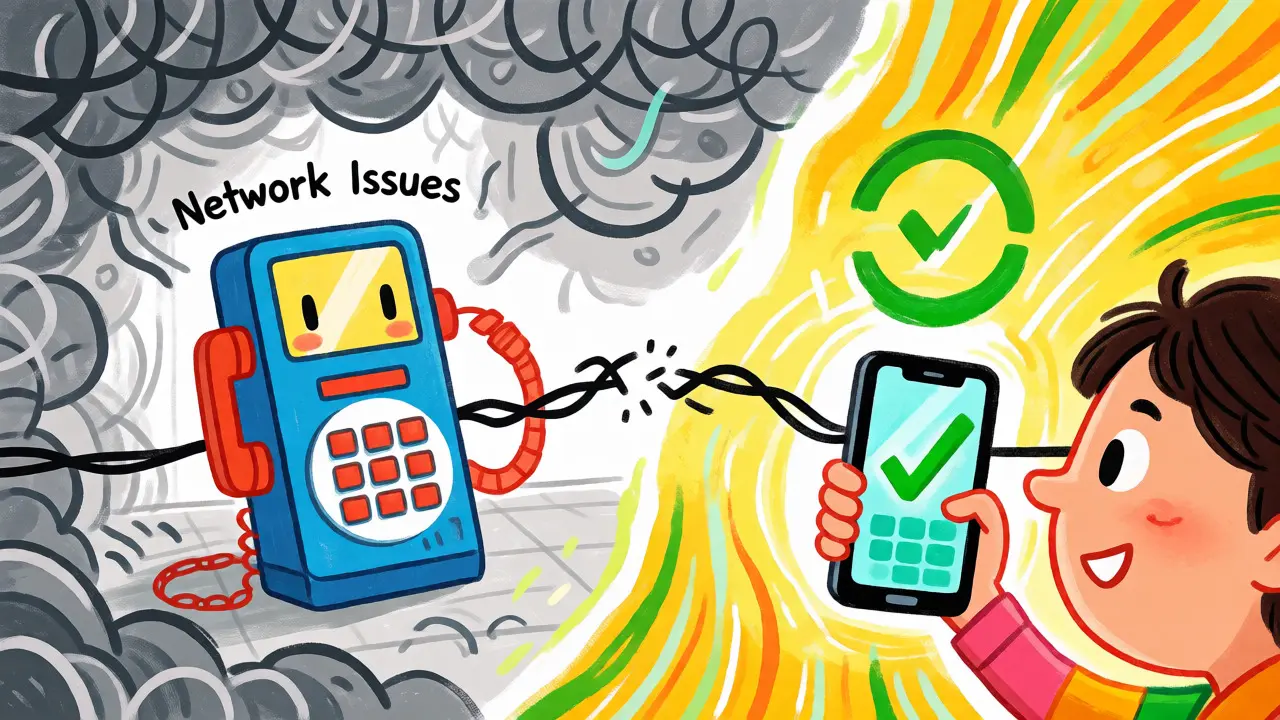
Here’s a tricky one: your phone shows four bars of 5G data, but voice calls fail. Why? Because voice doesn’t always ride on the same data path. With the global retirement of 3G networks, older phones that rely solely on 3G for voice cannot make or receive calls anymore. The FCC warns that unsupported devices may lose even emergency calling capabilities.
To fix this, you need Voice over LTE (VoLTE) or Wi-Fi Calling enabled. These technologies allow voice traffic to travel over 4G/LTE or Wi-Fi networks instead of legacy circuits.
- Enable VoLTE: On iPhone, go to
Settings > Cellular > Cellular Data Options > Voice & Dataand select LTE or 5G with VoLTE. On Android, look underConnections > Mobile Networks. - Try Wi-Fi Calling: If cellular coverage is spotty, enable Wi-Fi Calling. This routes calls through your internet connection. Note that carriers require you to register an emergency address for this feature.
If you recently bought a phone internationally, check if its frequency bands match your local carrier’s VoLTE requirements. A hardware-compatible phone might still fail to connect voice calls due to firmware mismatches.
Carrier-Side Blocks and Routing Errors
If your handset settings look perfect, the problem might live on the carrier’s side. Carriers use complex routing systems to direct calls. Sometimes, these systems get confused.
First, check for accidental call forwarding. If you previously set up conditional forwarding (e.g., forward when busy), it might be stuck. Dial the deactivation code for your carrier (often *73 or #002#) to clear all forwarding rules. Next, consider spam filtering services. Verizon’s Call Filter, T-Mobile’s Scam Shield, and AT&T’s ActiveArmor can aggressively block calls they deem suspicious. If a legitimate business uses a number flagged as "spam likely," your phone might reject it before it rings.
Contact your carrier’s support line. Don’t just say "calls aren't working." Give them specifics: "I cannot receive calls from [Caller Name] at [Time]. Outgoing calls work. SMS works. I am in [Location]." Ask them to check your account’s provisioning status. Is your line properly registered on the IMS (IP Multimedia Subsystem) core? Has a recent port-in or plan change left your voice service inactive?
VoIP and Multi-Device Complications
If you use a softphone or VoIP service like Google Voice, RingCentral, or Zoom Phone, the troubleshooting logic shifts slightly. Your physical phone might be fine, but the app isn’t listening.
Check two things immediately: background app refresh and notification permissions. On iOS, go to Settings > General > Background App Refresh and ensure your VoIP app is enabled. On Android, disable battery optimization for the app so the OS doesn’t kill its connection while you’re idle.
Also, verify which device is active. In Google Voice, for example, you must explicitly select which devices ring under Settings > Calls > Incoming call options. If you added a new tablet but didn’t enable it there, calls will only ring your old phone. For business VoIP systems, check if your extension is part of a hunt group or queue. If the system is configured to ring multiple people simultaneously, and you’re last in the list, you might not hear the call if others answer first.
When to Reset Network Settings
Resetting network settings is a nuclear option for connectivity issues. It clears saved Wi-Fi passwords, Bluetooth pairings, and VPN configurations, so write down your credentials first.
Do this if you suspect corrupted APN (Access Point Name) settings or if the phone fails to re-register with the tower after moving locations. On iPhone, go to Settings > General > Transfer or Reset iPhone > Reset > Reset Network Settings. On Samsung Galaxy, navigate to Settings > General management > Reset > Reset mobile network settings. After the reset, restart the phone and test again. If calls still don’t come through, the issue is rarely the phone itself-it’s almost always the carrier’s routing or the SIM card’s registration state.
| Cause Category | Symptom | Quick Fix |
|---|---|---|
| Notification Settings | Phone stays silent, call goes to voicemail | Disable Do Not Disturb/Focus modes; check "Silence Unknown Callers" |
| Network Technology | Data works, voice fails; poor signal areas | Enable VoLTE or Wi-Fi Calling; update carrier settings |
| Carrier Routing | All calls fail; started after plan change | Contact carrier to verify provisioning and clear forwarding |
| Spam Filtering | Only unknown/business numbers fail | Temporarily disable carrier spam apps; add caller to contacts |
| Hardware/SIM | No signal icon; random drops | Reseat SIM; replace damaged SIM; test in another phone |
Why do my calls go straight to voicemail?
This usually happens for three reasons: your phone is off or out of range, you have manually forwarded calls, or you have enabled a "Do Not Disturb" mode that rejects non-favorite contacts. Check your forwarding codes and notification settings first.
Can a bad SIM card cause incoming call failures?
Yes. A physically damaged SIM or one that hasn’t been properly provisioned by the carrier can prevent the device from registering on the voice network, even if data works. Try reseating the SIM or visiting a carrier store for a replacement.
Does turning off Wi-Fi help receive calls?
Sometimes. If your Wi-Fi connection is unstable, your phone might try to route calls via Wi-Fi Calling and fail. Turning off Wi-Fi forces the phone to use the cellular network exclusively, which can resolve conflicts if the cellular signal is strong.
Why can’t I receive calls from international numbers?
Your carrier may block international calls by default to prevent fraud, or your plan may not include international receiving. Additionally, some spam filters automatically block numbers without valid Caller ID, which is common in certain international regions.
Will resetting network settings delete my photos?
No. Resetting network settings only clears Wi-Fi passwords, Bluetooth connections, VPN profiles, and cellular preferences. Your apps, photos, messages, and contacts remain untouched.