
Imagine picking up a call and, before you even say "hello," you already know exactly who is on the line, what they bought last month, and the fact that they're calling back about a support ticket they opened two days ago. You don't have to ask for their account number or put them on hold while you scrub through a database. This isn't magic-it's screen pop is a call center software feature that automatically displays a window with relevant customer information on an agent's screen the moment a call arrives.
If you've ever been the customer who had to repeat their email address three times to three different people, you know exactly why this technology exists. It removes the friction from the conversation and lets the agent focus on the human being, not the data entry. For businesses, it transforms a cold, robotic interaction into a "warm start," where the customer feels recognized and valued from the first second.
How Screen Pop Actually Works
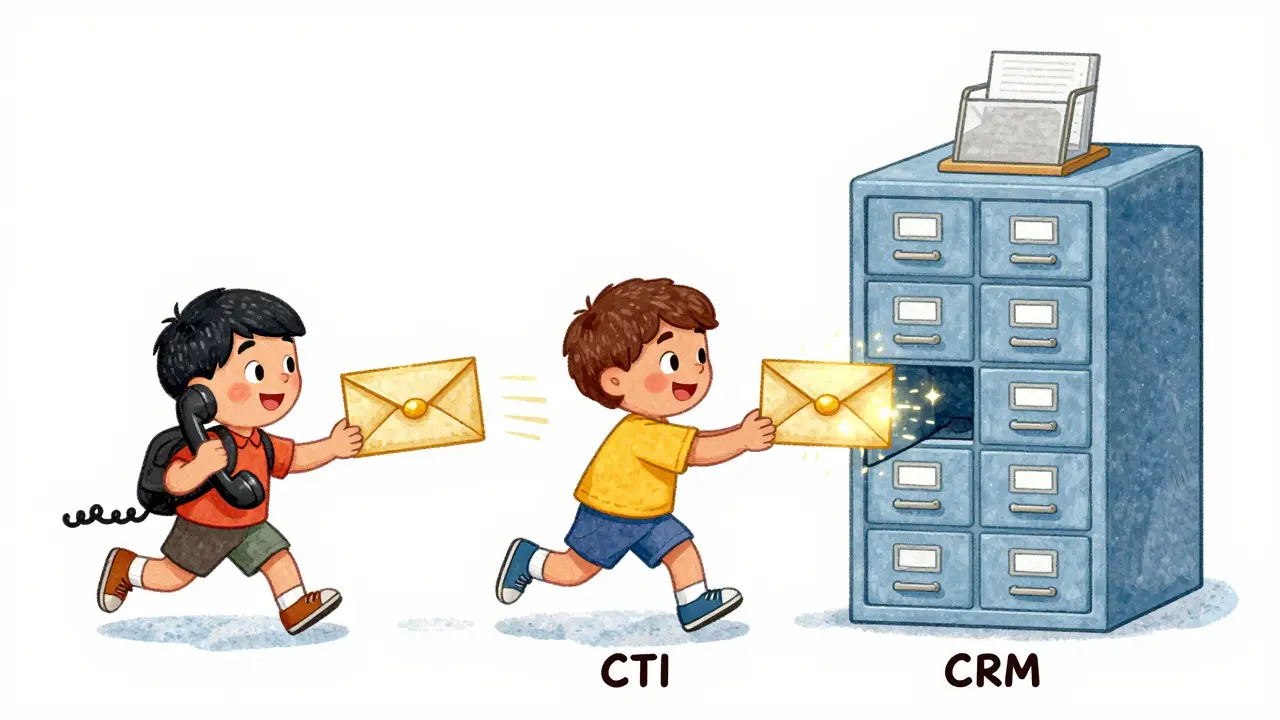
To make a screen pop happen, three different systems have to talk to each other in milliseconds. First, you have the phone system that handles the actual call routing. Then, there's the Computer Telephony Integration (also known as CTI), the middleware that acts as a bridge between the telephony hardware and the software applications. Finally, there is the data source, usually a CRM (Customer Relationship Management) system like Salesforce or HubSpot.
Here is the sequence of events that happens in the blink of an eye:
- A customer dials your number.
- The phone system receives the call and immediately alerts the CTI software.
- The CTI software takes the caller's ID (the phone number) or a piece of data entered into the IVR (Interactive Voice Response) and searches the CRM for a match.
- Once a match is found, the CRM pushes the customer's specific record to the agent's screen just as the call connects.
For outbound calls, the process is mirrored. When an agent dials a number from a campaign list, the CTI triggers the CRM to pop up the relevant lead or contact record so the agent knows exactly who they are calling and why.
What Data Should You Actually Pop?
Just because you can display everything in your database doesn't mean you should. Overloading an agent with a wall of text leads to "data fatigue," where the agent spends the first ten seconds of the call reading instead of listening. The best screen pops provide a snapshot of the most critical attributes.
Most high-performing contact centers prioritize these specific data points:
- Identity Basics: Full name, company name, and job title.
- Account Status: Account number and current subscription level.
- Recent History: The last three interactions and who the customer spoke with last.
- Open Issues: Any outstanding service tickets or unresolved complaints.
- Contextual Data: If the caller used an IVA (Intelligent Virtual Assistant) before the agent joined, the screen pop should show exactly what the customer told the bot.
Advanced setups even include knowledge base suggestions. If the system detects the caller is in a "billing" queue and has a "late payment" flag on their account, it can automatically pop up the company's late-payment policy for the agent to reference.
| Feature | Manual CRM Search | CTI Screen Pop |
|---|---|---|
| Time to Data | 30-60 seconds (average) | Instant (< 1 second) |
| Customer Effort | High (Must provide ID/Email) | Low (Recognized immediately) |
| Agent Focus | Screen-focused (Searching) | Caller-focused (Listening) |
| Error Rate | Moderate (Typing mistakes) | Low (Automatic matching) |
Why This Changes the Game for Your Team
The most immediate impact of implementing screen pops is a drop in Average Handle Time (AHT). When you strip away the 45 seconds it takes to ask for an account number, verify an email, and search a database, you're significantly shortening the call without rushing the customer. This increases your first-call resolution rate because agents have the context to solve the problem right away rather than spending half the call just trying to figure out who they are talking to.
But the real win is the psychology of the customer. There is a massive difference between saying, "Can I have your account number please?" and saying, "Hi Sarah, I see you're calling about the shipping delay on your order from Tuesday. I've got that right here; let me help you fix it." The first one feels like a transaction; the second one feels like a relationship.
This is particularly powerful for support teams. In technical environments, knowing the previous ticket history prevents the agent from asking the customer to repeat troubleshooting steps they've already tried. Nothing frustrates a tech-savvy customer more than being told to "restart their router" for the fourth time because the new agent didn't read the previous notes.
Implementation and Integration Options
Getting screen pop up and running usually depends on your current tech stack. If you use a modern cloud-based contact center solution like Ringover, Talkdesk, or Five9, you likely already have native integrations with the most popular CRMs. In these cases, it's often as simple as connecting an API key and selecting which fields you want to display in the admin console.
For companies using a home-grown or highly specialized CRM, you can still achieve this through webhooks. A webhook allows your phone system to send a real-time notification to your custom database, which then triggers the pop-up window in the agent's browser. This ensures that even if you aren't using a standard off-the-shelf product, your agents aren't stuck in the dark ages of manual searching.
When configuring your system, you should decide which "objects" you want to pop. While the customer record is the default, some teams prefer to pop the most recent Case or Opportunity record instead. For example, a sales team might want to see the specific deal the customer is calling about, whereas a support team wants to see the open ticket.

Common Pitfalls to Avoid
While screen pops are incredibly useful, they can go wrong if not managed correctly. One of the most common issues is "mismatched records." This happens when a customer calls from a number that isn't linked to their account, or when a shared family phone is linked to multiple profiles. If your system just pops the first match it finds, your agent might greet a customer by the wrong name-which is almost worse than not knowing who they are at all.
To prevent this, use a "multi-match" screen pop. If the system finds three possible customers for one phone number, it should pop a small list allowing the agent to quickly click the correct one before answering. This maintains the speed of the process while ensuring accuracy.
Another mistake is ignoring the "outbound" side of the house. Many companies set up screen pops for incoming calls but forget to configure them for their sales teams making outbound dials. An outbound agent calling through a campaign script should have the specific campaign goals and customer context popped immediately, so they aren't reading from a generic script without knowing the lead's background.
Does screen pop work with any phone system?
Not every system supports it. You need a phone system that features Computer Telephony Integration (CTI). Most modern VoIP and cloud contact center platforms have this built-in, but old analog PBX systems usually do not. If your system lacks native CTI, you may need a third-party middleware solution to bridge your phones and your CRM.
Can screen pops be customized for different departments?
Yes. Most professional CTI tools allow administrators to set different pop rules based on the call queue. For example, the billing department can be configured to pop account balance and payment history, while the technical support team pops a list of the customer's hardware and open tickets.
What happens if the customer is not in the CRM?
Depending on your settings, the system will either pop a "No Record Found" notification or, more usefully, it can automatically create a new lead/contact record based on the caller's phone number. This allows the agent to start filling in the customer's details immediately during the call.
Is there a difference between 'call pop' and 'screen pop'?
No, they are essentially the same thing. "Call pop" is simply a common industry term for the screen pop functionality. Both refer to the automatic delivery of customer data to an agent's screen triggered by a phone call.
How does IVR data get into a screen pop?
When a customer enters a number (like an order ID) into your IVR system, that data is stored as a temporary variable in the call session. The CTI software grabs that variable and uses it as a search key in the CRM, ensuring the agent sees the specific order the customer is calling about, even if the phone number doesn't match.
Next Steps for Implementation
If you're ready to move away from manual searching, start by auditing your data. A screen pop is only as good as the information in your CRM; if your data is messy or outdated, your agents will be popping incorrect information. Clean your database and ensure phone numbers are formatted consistently.
Next, map out your "ideal」 glimpse. Talk to your best agents and ask them exactly which five pieces of information they need to see the moment they answer a call. Build your first screen pop configuration around those high-value fields rather than trying to show everything at once.
Finally, test the system with a small group. Watch how they interact with the pop-up. Are they ignoring it? Is it blocking a part of the screen they need? Tweak the layout and the timing-some prefer the pop to happen a few seconds before the call hits, while others prefer it exactly at the moment of connection.