
You are on a critical sales call with your desk phone. Suddenly, you need to step into the conference room, but leaving the handset behind means hanging up or awkwardly asking the client to hold while you shuffle devices. This is exactly the problem Call Flip is designed to solve. It allows you to move a live, active voice call from one device to another-like from your office desk phone to your mobile smartphone app-instantly, without dropping the connection or interrupting the conversation.
In the world of modern business communications, staying connected across different physical locations is no longer optional; it is a requirement for productivity. Call Flip, also known as Call Pulling or Call Pushing, has become a standard feature in cloud telephony systems. It bridges the gap between fixed-line reliability and mobile flexibility, ensuring that your professional identity stays consistent regardless of which hardware you are holding at any given moment.
What Is Call Flip and Why Does It Matter?
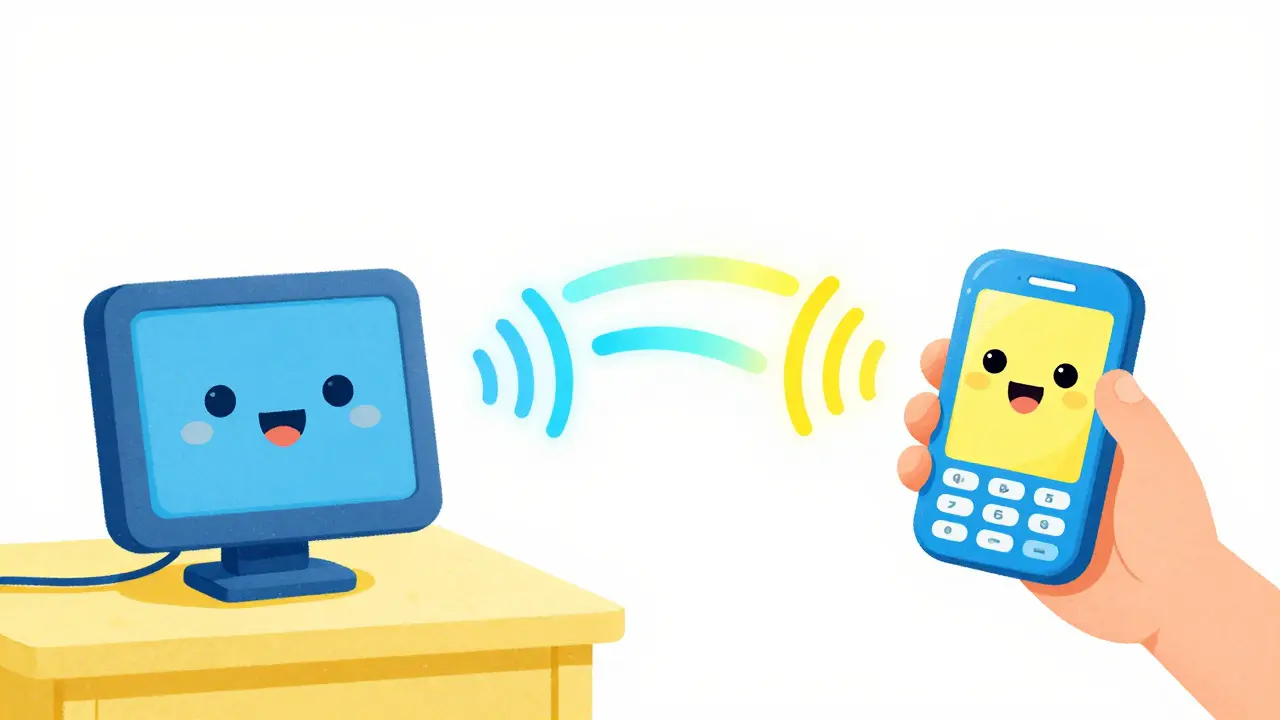
Call Flip is a cloud telephony capability that transfers an ongoing call between registered endpoints, such as a desk phone, softphone, or mobile app, typically within 1-3 seconds of audible disruption. Unlike traditional call forwarding, which sends incoming calls to a secondary number before they are answered, Call Flip works on calls that are already in progress. You pick up the phone, talk for a few minutes, decide you want to walk around, and then flip the call to your pocket.
The core value here is continuity. When you use Call Flip, the caller hears nothing unusual. There is no "click" of a transfer, no music on hold, and no request to stay on the line. The signal simply moves through the provider’s cloud PBX (Private Branch Exchange), switching the audio stream from Device A to Device B seamlessly. For hybrid workers who split their day between home offices, co-working spaces, and client sites, this feature eliminates the friction of managing multiple communication channels.
By mid-2026, major providers like RingCentral, Nextiva, Vonage, and Pascom have standardized this functionality. It is no longer a niche premium add-on but a baseline expectation for any serious Unified Communications as a Service (UCaaS) platform. If your current system forces you to hang up and redial when you leave your desk, you are losing time and potentially frustrating clients.
How Call Flip Works Under the Hood
To understand why Call Flip feels so smooth, it helps to look briefly at what happens in the background. When you initiate a flip, the system performs a specific sequence of actions handled by the SIP (Session Initiation Protocol) signaling infrastructure:
- Hold: The cloud PBX places the active call leg on hold. The caller remains connected to the system but hears silence or low-volume hold music, depending on your settings.
- Ring All: The system simultaneously rings all devices assigned to your user profile. This might include your desk phone, your laptop softphone, and your mobile app.
- Reconnect: As soon as you answer the ringing call on your new target device (e.g., your mobile phone), the PBX reconnects the held call to that specific endpoint.
- Terminate: The system cuts off the ringing legs on the other devices and terminates the original call leg on the old device.
This entire process usually takes less than five seconds. From the user’s perspective, it feels like magic, but technically, it is a precise two-step transaction: hold-and-reinvite. Because the call ID and user extension remain the same throughout the process, the caller never knows that the physical endpoint has changed. This is distinct from a blind transfer, where the call is handed off to a completely different person or extension.
Setting Up Call Flip: A Step-by-Step Guide
While every provider has a slightly different interface, the setup logic is remarkably consistent across the industry. Here is how you generally get Call Flip working in your environment:
1. Register Multiple Devices
First, ensure that at least two devices are linked to your single user account. Typically, this involves installing the provider’s mobile app on your smartphone and logging in with your credentials. You should also have a desktop softphone installed on your computer or a physical IP desk phone provisioned by your IT admin.
2. Configure Flip Numbers or Destinations
In many systems, such as RingCentral, you assign numeric shortcuts (Flip Numbers 1-8) to specific devices. For example, you might set '1' for your desk phone, '2' for your mobile app, and '3' for your home phone. This mapping allows you to execute flips quickly using star codes (*1, *2, etc.) rather than navigating complex menus during a live conversation.
3. Activate the Feature
Some platforms enable Call Flip automatically once multiple devices are detected. Others, like Ringover, may require you to toggle a switch in the Call Forwarding or Mobility settings within the admin portal or user dashboard. Check your provider’s documentation to ensure the feature is not disabled by default.
4. Test the Workflow
Before relying on it for important clients, test the feature yourself. Place a test call to your own number from a personal phone, answer it on your desk phone, and then attempt to flip it to your mobile app. Time how long it takes and check for audio clarity. Practice makes perfect, especially if you are using star codes.
Using Call Flip Across Major Platforms
The user experience varies slightly depending on which UCaaS provider you subscribe to. Below is a breakdown of how leading platforms handle Call Flip in 2026.
| Provider | Primary Method | Supported Endpoints | Key Shortcut / UI Element |
|---|---|---|---|
| RingCentral | Star Codes & App Menu | Desk Phone, Mobile App, Desktop Softphone | *[Flip Number] (e.g., *2); "Flip" button in app |
| Nextiva | Pull Call Feature | Desk Phone, Mobile App, Desktop Client | *11 code; Ctrl+P (Windows) / Cmd+P (Mac) |
| Vonage Business | Seamless Transfer | Desk Phone, Cell Phone | Integrated into base plan; automatic detection |
| Pascom | Call Pushing | Hard Phone, Softphone, Mobile App | Answer ringing call on new device after hold |
| Ringover | Flip Button | Mobile, Web/Desktop, Desk Phone | Dedicated "Flip" icon in active call screen |
RingCentral offers one of the most flexible setups, allowing users to define up to eight flip destinations. During a call on a desk phone, pressing *2 immediately pushes the call to the device assigned to number 2. In their mobile and desktop apps, a simple tap on the "Flip" option in the call actions menu achieves the same result. They have also extended this to video meetings, where opening the app on a second device triggers a pop-up asking if you want to switch the meeting session.
Nextiva brands this as "Call Pulling." On a desk phone, you can dial *11 or press a dedicated "Pull Call" softkey to bring an active call from another device onto the current handset. Their desktop client supports keyboard shortcuts (Ctrl+P or Command+P), which is a significant productivity boost for power users who prefer keeping their hands on the keyboard.
Vonage treats Call Flip as a standard inclusion across all its business plans. The focus is on simplicity: the system detects your presence on multiple devices and allows seamless handoffs without requiring complex star code memorization. It works symmetrically, meaning you can easily push a call from mobile to desk just as easily as desk to mobile.

Common Pitfalls and Troubleshooting
Even with robust technology, Call Flip can sometimes fail or behave unexpectedly. Here are the most common issues and how to resolve them:
- Latency Issues: If there is a noticeable delay (more than 5 seconds) or static during the flip, check your internet connection quality on both devices. Call Flip relies on stable SIP signaling; packet loss on either end can disrupt the re-invite process.
- App Not Registered: Ensure your mobile app is fully logged in and registered with the server. If the app is in the background and killed by the operating system to save battery, it may not receive the ring signal. Enable "Background App Refresh" and disable battery optimization for your VoIP app.
- Incorrect Flip Number Mapping: If you press *2 and the call goes to voicemail instead of your mobile, verify your Flip Number assignments in the admin portal. Misconfigured mappings are the #1 cause of failed flips.
- Network Handoff Problems: Flipping from Wi-Fi to cellular data can sometimes cause a brief drop if the transition isn't smooth. Try to keep your mobile data strong before initiating the flip if you are moving outdoors.
Is Call Flip Worth It for Your Business?
For businesses with stationary staff who never leave their desks, Call Flip might seem like a luxury. However, for anyone involved in sales, customer support, field services, or hybrid management, it is a critical tool. It reduces average handle time by eliminating the need to explain transfers to customers. It improves employee satisfaction by reducing the stress of missing calls due to mobility constraints.
Moreover, because it is included in standard plans from major providers like Vonage and Yeastar, there is rarely an additional cost to adopt it. The investment is purely in the initial configuration and training. Given that mismanaged calls can lead to lost revenue, the ROI on implementing Call Flip correctly is immediate and tangible.
Does Call Flip work with video meetings?
Yes, several providers like RingCentral have extended Call Flip functionality to audio and video meetings. When you open the meeting app on a second device, a prompt appears asking if you want to switch the session, allowing you to move the video feed seamlessly.
Is Call Flip available on all VoIP plans?
As of 2026, Call Flip is considered a standard feature in most mainstream UCaaS plans from providers like Vonage, Nextiva, and RingCentral. It is rarely sold as a separate add-on, though some legacy or very basic residential VoIP plans may lack this advanced mobility feature.
What is the difference between Call Flip and Call Transfer?
Call Transfer moves a call from one user/extension to another person. Call Flip moves a call from one device to another device belonging to the same user. The caller does not know a transfer happened in a Call Flip scenario, whereas a transfer often involves a brief hold or announcement.
Can I flip a call to a non-VoIP phone number?
Generally, no. Call Flip requires the destination device to be registered with the cloud PBX system (e.g., a softphone app or IP desk phone). To send a call to a random landline or mobile number not managed by your VoIP provider, you would typically use standard Call Forwarding, not Call Flip.
How fast is the Call Flip process?
In optimal conditions, Call Flip completes in 1-3 seconds. The caller experiences minimal to no interruption. Delays longer than 5 seconds are usually indicative of network latency or poor signal strength on the receiving device.