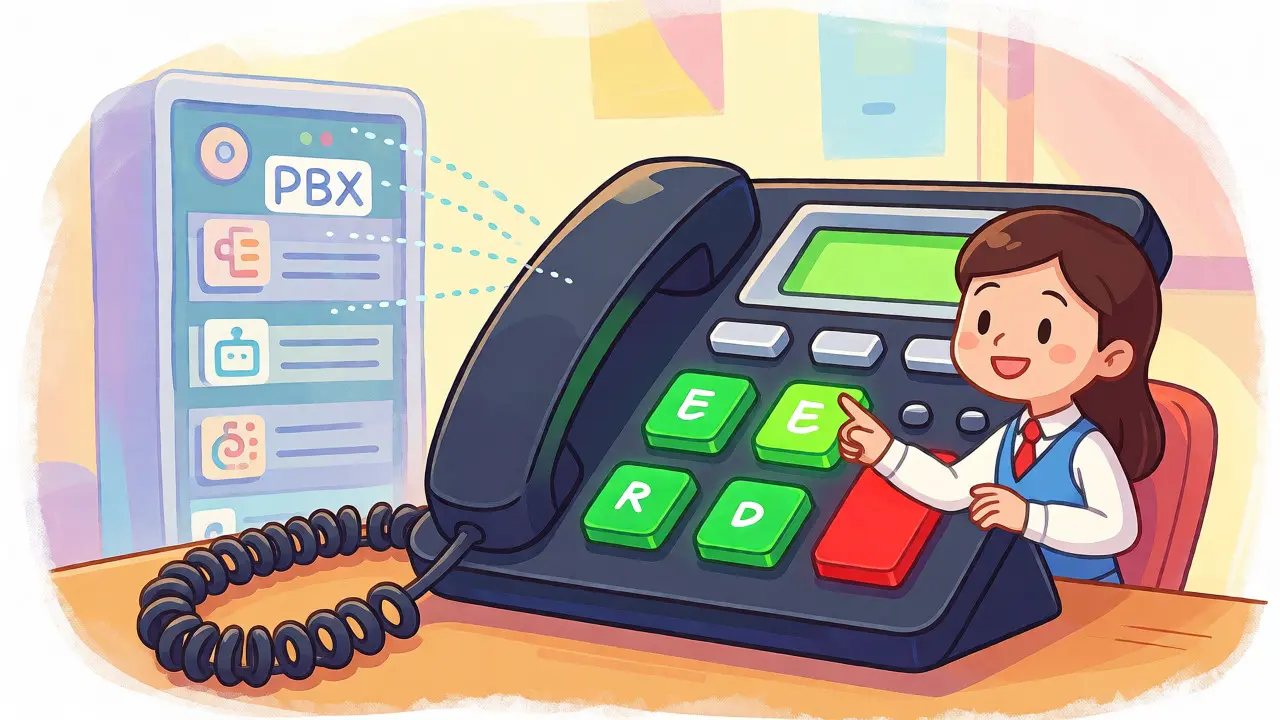
Imagine you are a receptionist. You need to know if Sarah in Accounting is free before transferring a client. Do you call her? No. You look at the little light on your desk phone. If it’s green, she’s free. If it’s red, she’s busy. That light is powered by Busy Lamp Field (BLF), a feature that lets you monitor the status of other extensions on your VoIP desk phones.
But here is the catch: BLF isn’t magic. It doesn’t just work because you have IP phones. It relies on specific protocols, server configurations, and precise key assignments. Many IT admins struggle with BLF because they treat it like a simple speed dial. It’s not. It’s a subscription service between your phone and the PBX. If one piece is missing-a hint in Asterisk, a URI in Cisco, or the right firmware on a Yealink-the lights stay dark or lie to you.
This guide cuts through the noise. We’ll break down how BLF actually works under the hood, how to configure it on major platforms like Yealink, Grandstream, and Cisco, and how to fix the most common failure points. Whether you’re managing a small office or a large call center, getting this right saves time and reduces frustration.
What Is Busy Lamp Field and How Does It Work?
Busy Lamp Field is a SIP-based presence feature that allows a user to see the real-time state of another extension. Unlike traditional analog systems where wires physically connected lamps, modern VoIP uses data packets to signal status changes. The core technology behind this is defined in RFC 4235, which specifies the SIP Dialog Event package.
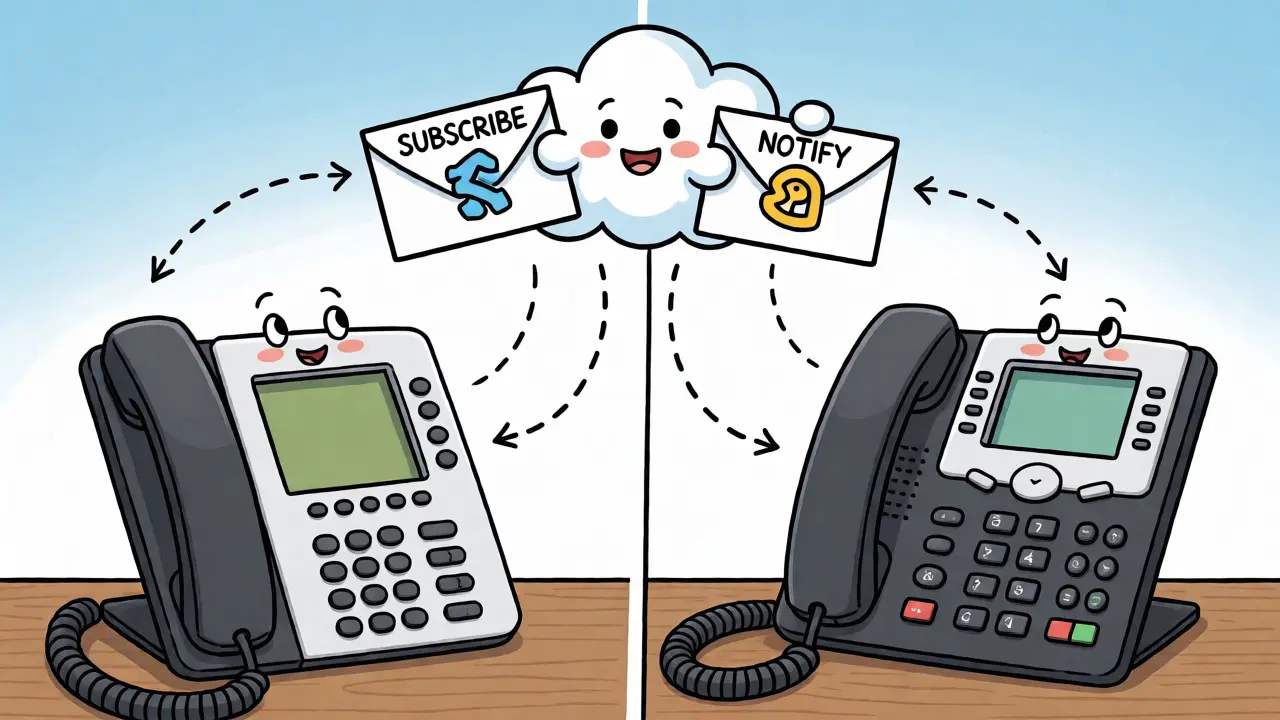
Here is the basic flow:
- The watcher (your phone) sends a
SUBSCRIBErequest to the PBX, asking for updates on Extension 201. - The PBX accepts the subscription and sends an initial
NOTIFYmessage with the current state (e.g., Idle). - When Extension 201 picks up a call, the PBX sends a new
NOTIFYmessage saying the state is now "Confirmed" or "Ringing." - Your phone receives this message and turns the LED red or flashes it.
It is crucial to understand that BLF reports dialog state, not human availability. If Sarah has her phone forwarded to her mobile but the PBX still sees the line as idle, your BLF will show green even though she might be unavailable. This distinction often causes confusion during troubleshooting.
| LED State | Typical Color | Meaning (Dialog State) | User Reality Check |
|---|---|---|---|
| Idle | Green or Off | No active calls on the line | User may be away from desk or logged out |
| Ringing | Flashing Red/Green | Incoming call alerting | Call is ringing on the endpoint |
| Busy | Solid Red | Call is connected/active | User is currently on a call |
| Hold | Amber/Yellow | Call is on hold | User stepped away mid-call |
Configuring BLF on Major Phone Brands
While the protocol is standard, the configuration interface varies wildly by manufacturer. You cannot copy-paste settings across brands. Here is how to set it up on the most common devices.
Yealink Configuration
Yealink phones are popular for their intuitive web interface and robust BLF support. To set up a static BLF key:
- Log into the phone’s web GUI via its IP address.
- Navigate to Line Key Settings.
- Select an unused programmable key.
- Set the Type to
Busy Lamp Field. - In the Value field, enter the full SIP URI of the monitored extension (e.g.,
sip:[email protected]). Some models accept just the number if the domain is default. - Ensure the correct Account is selected. This determines which credentials are used for the subscription.
- Save and reboot.
For monitoring multiple users, use the BLF List feature. This requires the PBX to provide a list URI. In Yealink, you assign a key type of BLF List and specify the URI provided by your provider (like Zoom Phone or Microsoft Teams). This dynamically maps available keys to a group of users, saving you from configuring each one manually.
Grandstream Setup
Grandstream GXP series phones use a similar logic but different menus.
- Go to Settings > Programmable Keys.
- Select a Multi-Purpose Key or Virtual Multi-Purpose Key.
- Change the function to
Busy Lamp Field. - Enter the monitored extension number in the Value field.
- Check the Enable Directed Call Pickup option if you want the key to answer the call when pressed.
Note: On older Grandstream models, you might need to enable "Subscribe to Presence" globally in the account settings first.
Cisco Multiplatform Phones
Cisco 78xx and 88xx phones rely heavily on XML configuration files or direct admin login.
- Access the phone via HTTPS and log in as Admin.
- Go to Voice > Attendant Console.
- Look for BLF List URI. Enter the URI provided by your CUCM or hosted provider.
- To map individual keys, go to Phone Button Template or Extension Settings.
- Assign the button type to
BLFand input the directory number (DN) of the target user.
Cisco also supports Use Line Keys for BLF List, which automatically populates physical line buttons with users from a defined list. This is ideal for receptionists who need to monitor a whole team without manual mapping.
PBX-Side Requirements: The Hidden Bottleneck
90% of BLF failures aren’t the phone’s fault. They stem from the PBX not publishing the correct state. Your phone can subscribe all day long, but if the server doesn’t send a NOTIFY, nothing happens.
Asterisk and FreePBX Hints
In Asterisk, BLF depends entirely on dialplan hints. A hint tells Asterisk how to find the device associated with an extension. Without a hint, Asterisk doesn’t know what to watch.
Check your extensions.conf or FreePBX database. A proper hint looks like this:
[from-internal]
hint => 201,PJSIP/201
If you are using chan_sip (deprecated), the syntax differs slightly (SIP/201). Always prefer PJSIP for better performance and standards compliance. In FreePBX, ensure Enable Custom Device States is checked in the system settings. If this is off, custom BLF subscriptions may fail silently.
Hosted PBX Considerations
If you use a hosted service like RingCentral, 8x8, or OnSIP, you don’t manage hints directly. Instead, you must enable BLF permissions in the admin portal. Some providers charge extra for advanced BLF lists or limit the number of monitored lines per user. Always check if your plan includes "Team Presence" or "Call Parking," as these features often share infrastructure with BLF.
Troubleshooting Common BLF Issues
When the lights don’t work, follow this diagnostic path:
- Wrong URI Format: Ensure you are entering the full SIP URI if required. Just typing "201" might work on some internal networks but fail on others. Try
sip:[email protected]. - Subscription Expiry: SIP subscriptions expire. If your network has aggressive NAT timeouts, the subscription might drop before refreshing. Increase the
expirestimer in your phone settings (e.g., from 3600 to 1800 seconds) to force more frequent refreshes. - Firewall Blocking NOTIFY: The PBX needs to send unsolicited
NOTIFYmessages to your phone. If your firewall only tracks outbound connections, these inbound notifications might get dropped. Ensure UDP port 5060 (or TLS 5061) is open for bidirectional traffic. - Firmware Mismatch: Older firmware versions often have buggy RFC 4235 implementations. Update your phones to the latest stable release.
- Pickup Code Missing: If the light shows "Busy" but pressing the key does nothing, you likely haven’t configured the pickup code. In Asterisk, this is usually
*8or*43. Configure this in the phone’s BLF settings so it knows what to dial when you press the key.
Pro Tip: Use Wireshark to capture SIP traffic. Filter for sip.Method == SUBSCRIBE and sip.Event == dialog. If you see 200 OK responses but no subsequent NOTIFYs, the issue is on the PBX side (missing hints or ACLs).
Security and Privacy Implications
BLF exposes sensitive information. By subscribing to a colleague’s line, you effectively know when they are talking. While useful for workflow, it raises privacy concerns.
Administrators should apply least-privilege principles. Not everyone needs to monitor every extension. Restrict BLF subscriptions to managers, receptionists, or specific teams. Also, consider the impact of Caller ID disclosure. Some BLF implementations display the name of the person calling the monitored line. If your receptionist monitors the CEO’s line, they might see "Client X" calling, which could be confidential.
Use Transport Layer Security (TLS) for signaling whenever possible. This encrypts the SUBSCRIBE and NOTIFY messages, preventing eavesdroppers from seeing who is being monitored and their call states.
Best Practices for Deployment
To avoid headaches later, follow these rules when rolling out BLF:
- Standardize URIs: Decide early if you will use short numbers (201) or full URIs (sip:[email protected]). Stick to one format across all devices to simplify provisioning.
- Test End-to-End: Don’t just verify registration. Make a test call, put it on hold, transfer it, and park it. Watch the BLF light change at each step. If it doesn’t react to transfers, your PBX might not be updating the dialog state correctly.
- Document Pickup Codes: Create a cheat sheet for staff. "Press the red light to pick up the call." If the pickup code is non-standard, write it down.
- Limit Scope: Avoid monitoring too many lines on a single device. Each subscription consumes memory and processing power. For large teams, use BLF Lists rather than individual static keys.
BLF is a powerful tool for efficiency, but it demands precision. It connects your hardware, your network, and your PBX configuration into a single visual feedback loop. When set up correctly, it transforms a chaotic switchboard into a calm, informative dashboard. When ignored, it becomes a source of endless support tickets. Take the time to configure it properly once, and your team will thank you every time they glance at those glowing lights.
Why is my BLF light stuck on red?
This usually indicates a stale subscription or a missed NOTIFY message. The PBX thinks the call is still active, but the phone hasn't received the update that it ended. Rebooting the phone forces a new SUBSCRIBE request, which retrieves the current state from the server. If this happens frequently, check your NAT settings or increase the subscription expiry timer.
Can I use BLF with Microsoft Teams Direct Routing?
Yes, but it requires specific SBC (Session Border Controller) configuration. Teams handles presence differently than traditional PBXs. You typically need to configure the SBC to translate Teams presence events into SIP NOTIFY messages compatible with your desk phones. Consult your SBC vendor's documentation for specific BLF integration guides.
Does BLF work if the user is logged out?
Generally, no. If a user logs out of their softphone or desk phone, the device unregisters. Most PBXs will report the state as "Unavailable" or keep it as "Idle" depending on the configuration. BLF tracks the device state, not the human's calendar availability. If the device is offline, the light usually goes dark or stays green, misleadingly suggesting the user is free.
What is the difference between BLF and Presence?
BLF specifically monitors telephony dialog states (ringing, busy, idle) using RFC 4235. Presence is a broader concept (RFC 3856) that includes status messages like "Available," "Away," or "Do Not Disturb." While related, they are distinct protocols. Some phones allow you to subscribe to both, but BLF is strictly about call activity, while Presence can reflect manual status changes.
How many extensions can I monitor with BLF?
There is no universal limit. It depends on your phone model's memory and the PBX's licensing. Entry-level phones might support 10-20 static BLF keys, while high-end executive phones or expansion modules can handle 50+. Hosted providers may impose software limits, such as allowing only 5 monitored lines per user on lower-tier plans. Check your provider's technical specifications.